Configure a Slack integration for self-hosted Qyra
Create a Slack app and wire its credentials into your instance for unfurls and deliveries
🛠 This page is for engineering teams self-hosting their own Qyra instance. If you want to use the Slack integration, go to the Slack integration guide.
In this guide we will show you how you can enable the Slack integration on your on self-hosted Qyra server.
Create a new Slack app on your organization
First we will have to create a Slack APP https://api.slack.com/apps?new_app=1
You can select From an app manifest to make it easier.

Then select the workspace you want to enable this into. Later you can enable distribution if you want to use a different Slack workspace.
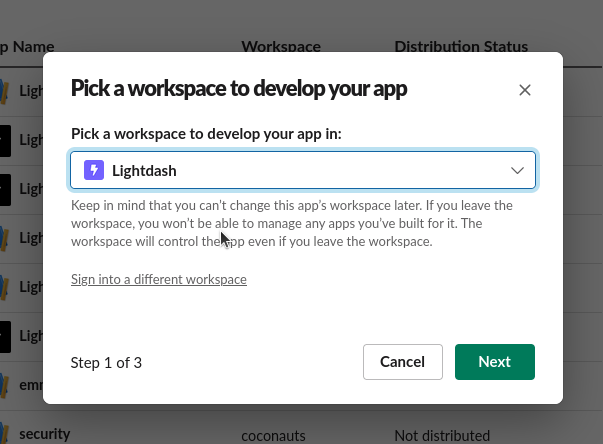
Then copy this manifest to allow URL unfurls in your app. Make sure you update your-qyra-deployment-url.com in the manifest below (for example, app.qyraflow.com).
display_information:
  name: Qyra
  description: Share Qyra URLs on your Slack
  background_color: '#7262ff'
features:
  bot_user:
    display_name: Qyra
    always_online: false
  unfurl_domains:
    - your-qyra-deployment-url.com
oauth_config:
  redirect_urls:
    - https://your-qyra-deployment-url.com/api/v1/slack/oauth_redirect
    - https://your-qyra-deployment-url.com/api/v1/auth/slack/callback
  scopes:
    bot:
      - app_mentions:read
      - channels:join
      - channels:read
      - channels:history
      - chat:write
      - chat:write.customize
      - files:read
      - files:write
      - groups:read
      - groups:history
      - links:read
      - links:write
      - users:read
      - im:write
settings:
  event_subscriptions:
    request_url: https://your-qyra-deployment-url.com/slack/events
    bot_events:
      - app_mention
      - link_shared
      - message.channels
  interactivity:
    is_enabled: true
    request_url: https://your-qyra-deployment-url.com/slack/events
  org_deploy_enabled: false
  socket_mode_enabled: false
token_rotation_enabled: falseFinally, click on create
Copying credentials
Now copy the following credentials from your new app.
From Basic Information
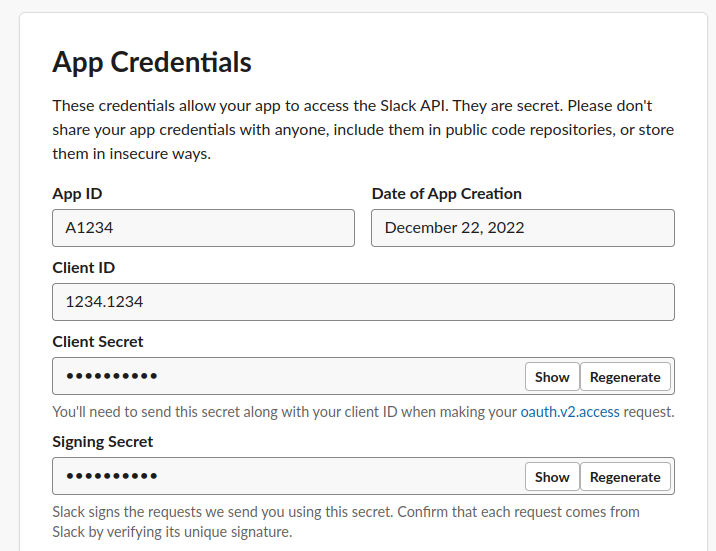
- Client ID
- Client secret (show and copy)
- Signing secret (show and copy)
Adding credentials to your local environment
Now you need to add the following environment variables to your Qyra server using the credentials we previously copied
SLACK_CLIENT_ID: Client ID (make sure it is between quotes, so it is a string, not a number)SLACK_CLIENT_SECRET: Client secretSLACK_SIGNING_SECRET: Signing secretSLACK_STATE_SECRET: This can be any string
Restart your Qyra service, now you should be able to use the Slack integration on your self-hosted Qyra.
Enable Socket Mode (Alternative Setup)
Socket Mode allows your Slack app to receive events and interactions over a WebSocket connection instead of HTTP requests. This can be useful for development or when you cannot expose your Qyra instance to the public internet.
When to use Socket Mode
- Your Qyra instance is not publicly accessible
- You're developing or testing the Slack integration locally
Configuring Socket Mode
Step 1: Enable Socket Mode in your Slack App
-
Go to your Slack app settings and navigate to the Socket Mode section in the sidebar.
-
Toggle the Enable Socket Mode switch to enable it.
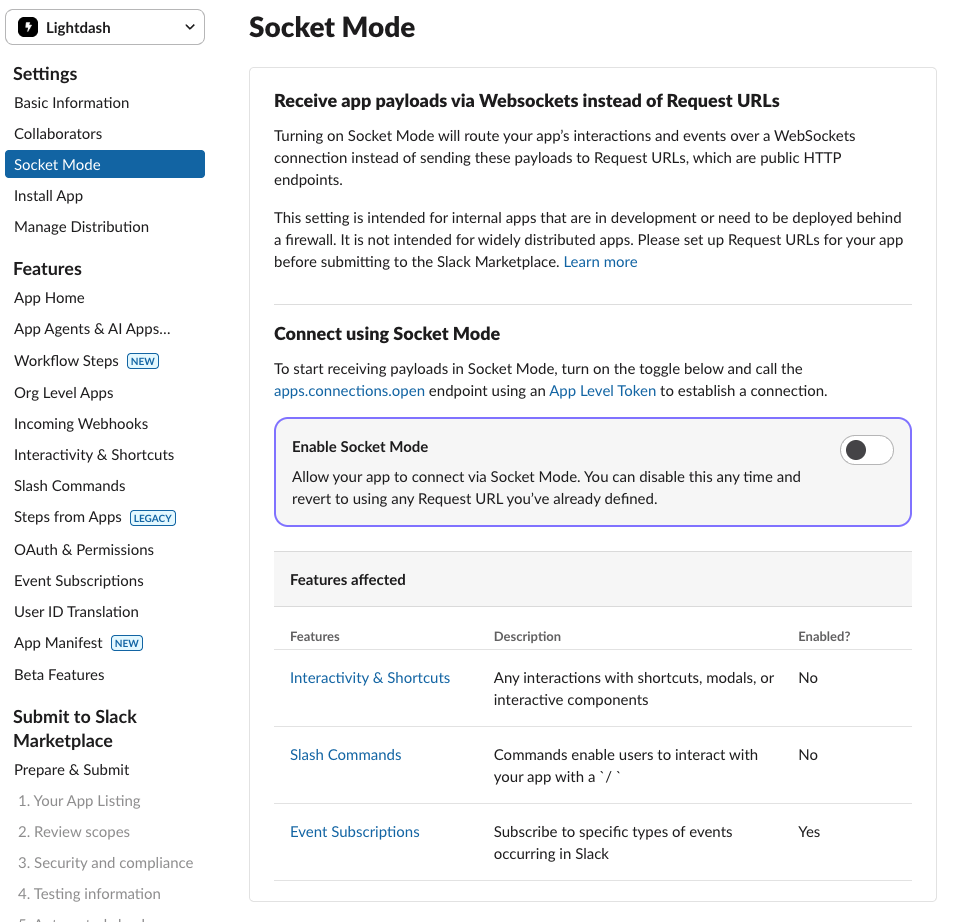
- After enabling Socket Mode, you'll be prompted to generate an app-level token. Enter a name for your token (e.g., "qyra-socket-token").

- Click Generate to create the token, then copy the generated token value. You'll need this for the next step.
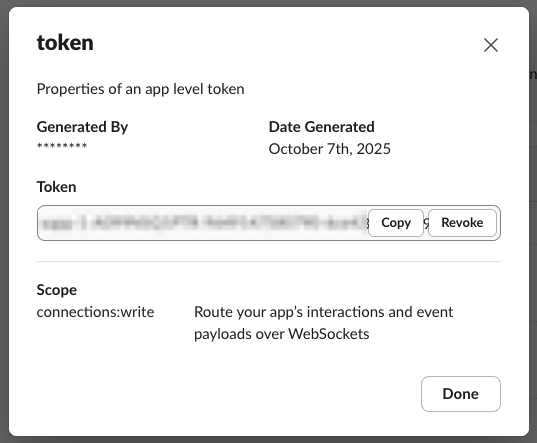
Step 2: Update Qyra Environment Variables
Add the following environment variables to your Qyra server configuration:
SLACK_APP_TOKEN: The app-level token you just generated and copied from Step 1SLACK_SOCKET_MODE: Set to"true"to enable Socket Mode
Step 3: Re-install the Slack Integration
After updating your environment variables, restart your Qyra service, then re-install the Slack integration in your Qyra instance to complete the Socket Mode setup. Your Slack integration will now use Socket Mode to communicate with Slack instead of HTTP webhooks.