AI Router
Automatically route questions to the best-fit agent, so users don't have to pick one first
The AI Router is part of the AI agents add-on. View pricing
When you have more than one AI agent in a project, users have to know which agent to ask. The AI Router removes that decision: type a question, and Qyra picks the agent best suited to answer it.
The router compares each agent's description, instructions, data access, and verified questions to decide where a question should go.
The router only chooses between agents the user can already access. It never widens an agent's data access or bypasses permissions — it only changes which of the user's available agents answers a given question.
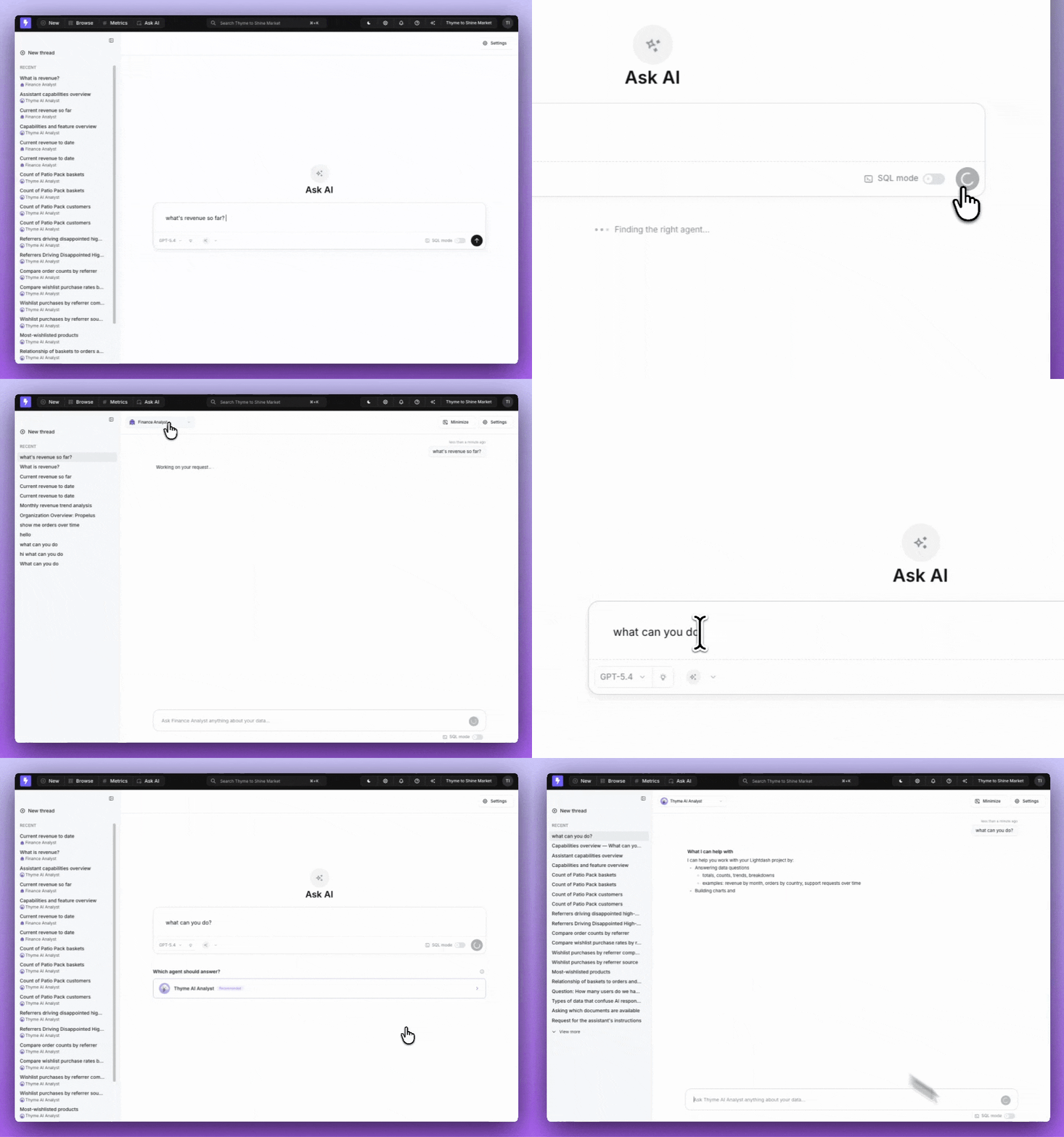
When the router runs
The router needs at least two agents you can access in a project. With a single accessible agent there's nothing to route between, so Qyra opens that agent directly.
When the router is confident, it routes your question straight to the best agent and starts the conversation. When it isn't, it shows a short picker with the recommended agent highlighted so you can choose.
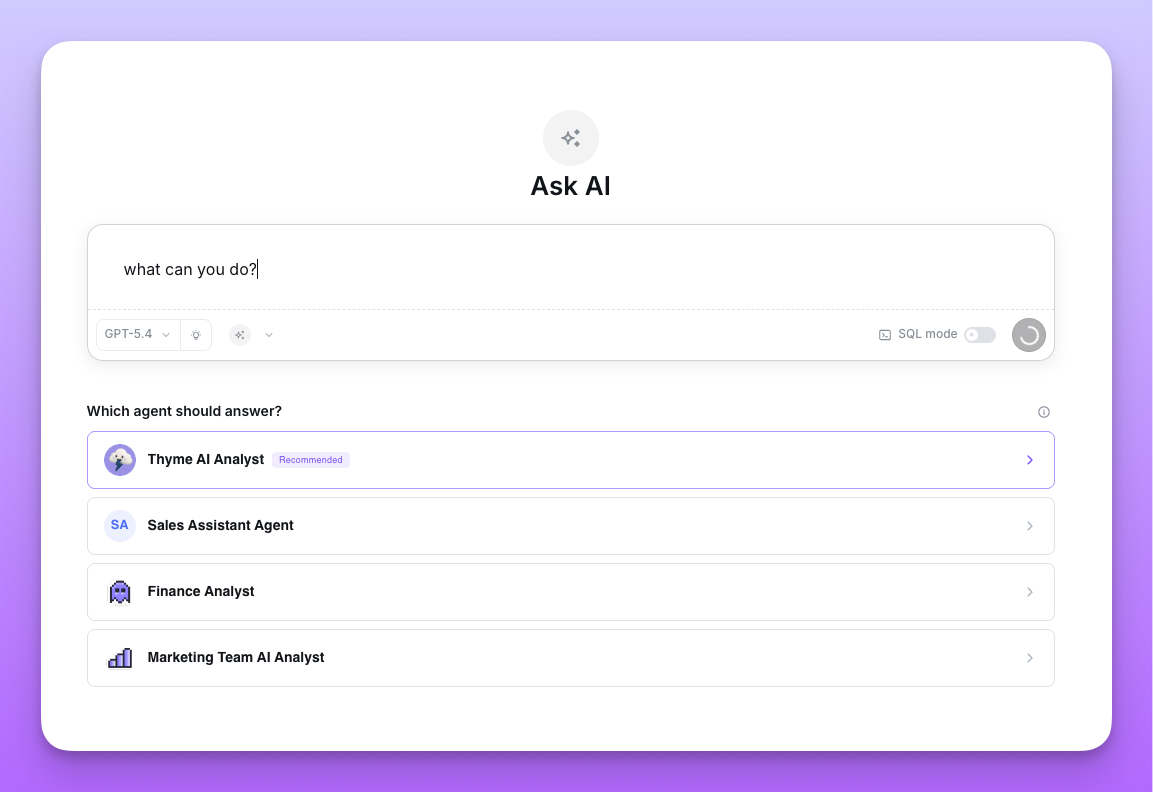
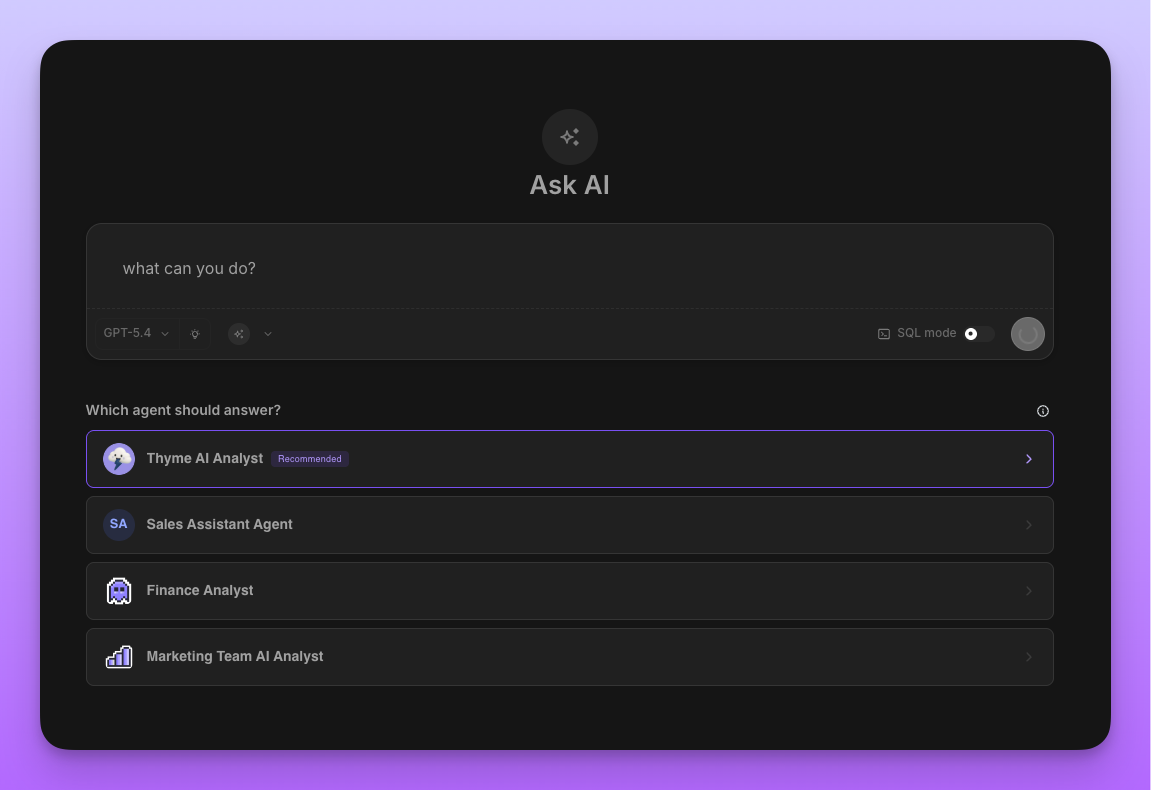
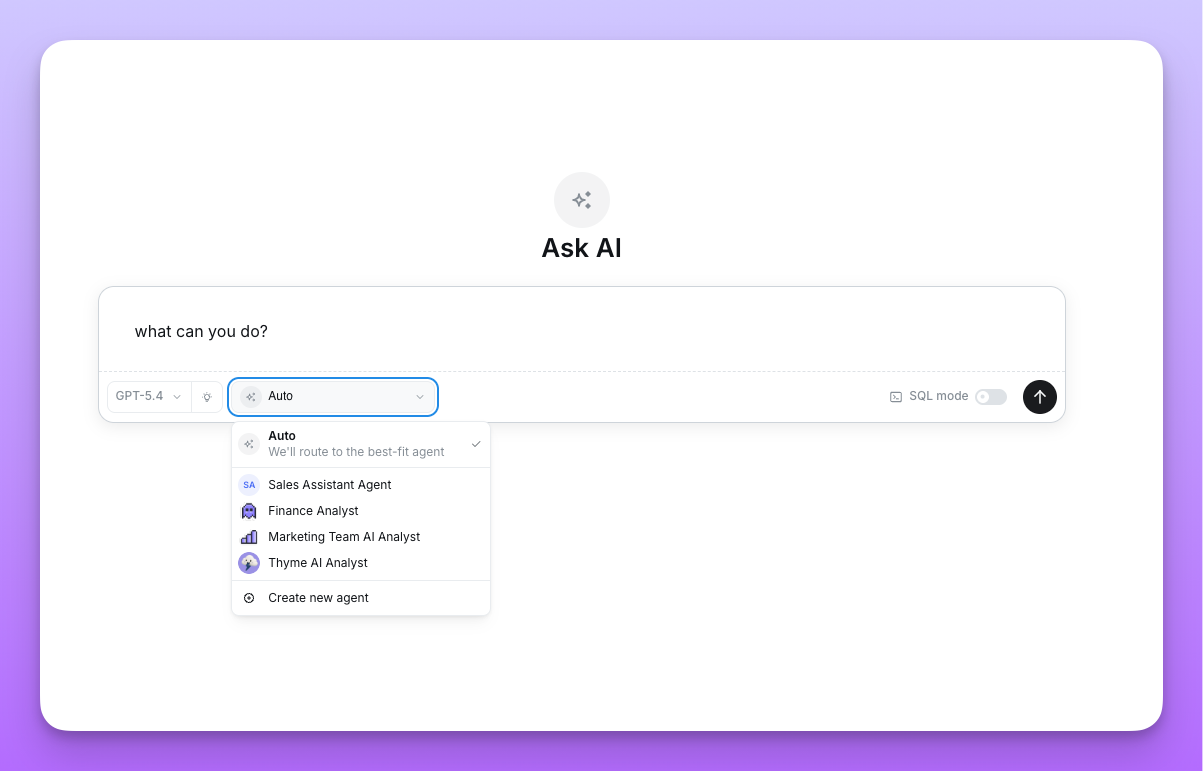
If you've set a default agent, it opens first even when the router is enabled. Pick Auto from the agent dropdown to let the router decide instead.
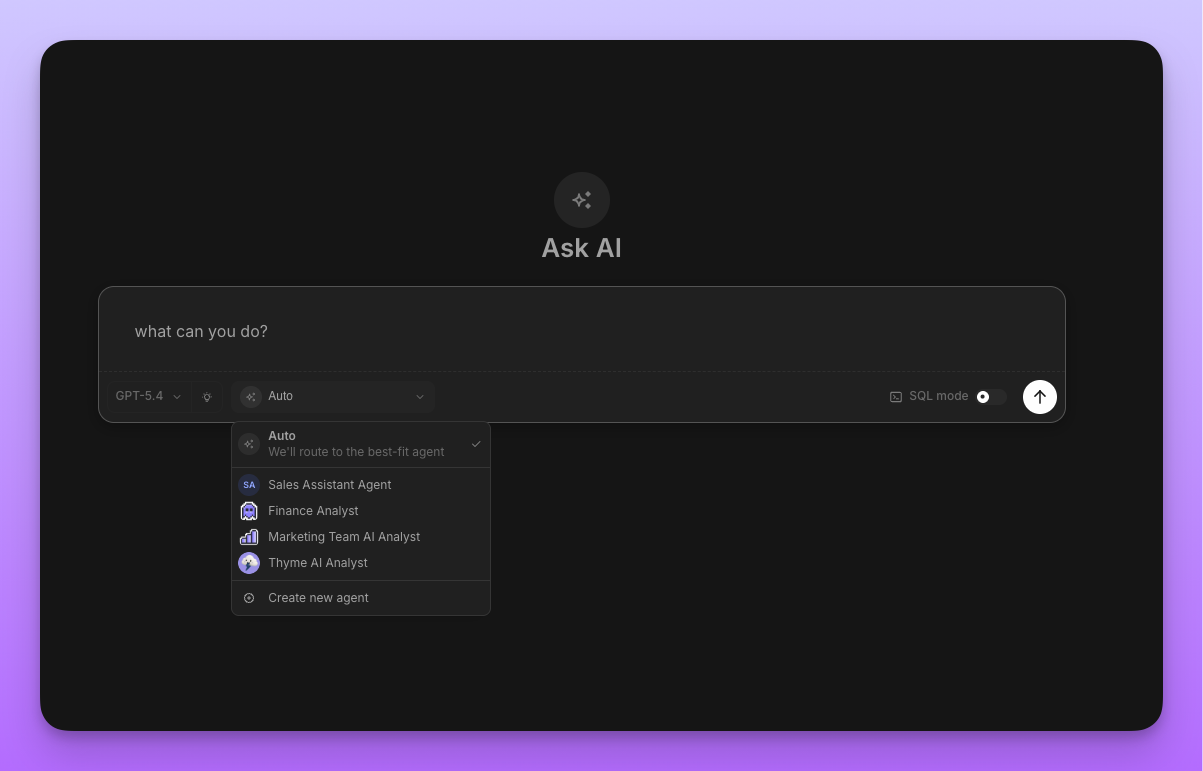
Enabling the router
The router is configured at the organization level and requires Organization Admin permissions.
Go to Settings → Organization Settings → Ask AI → General.
The router can only be turned on when Enable AI features for users is already enabled. If AI features are off, the router toggle is disabled with the hint "Enable AI features first to use the Router."
Toggle on AI Router — "Route user questions to the best agent automatically, instead of asking users to pick."
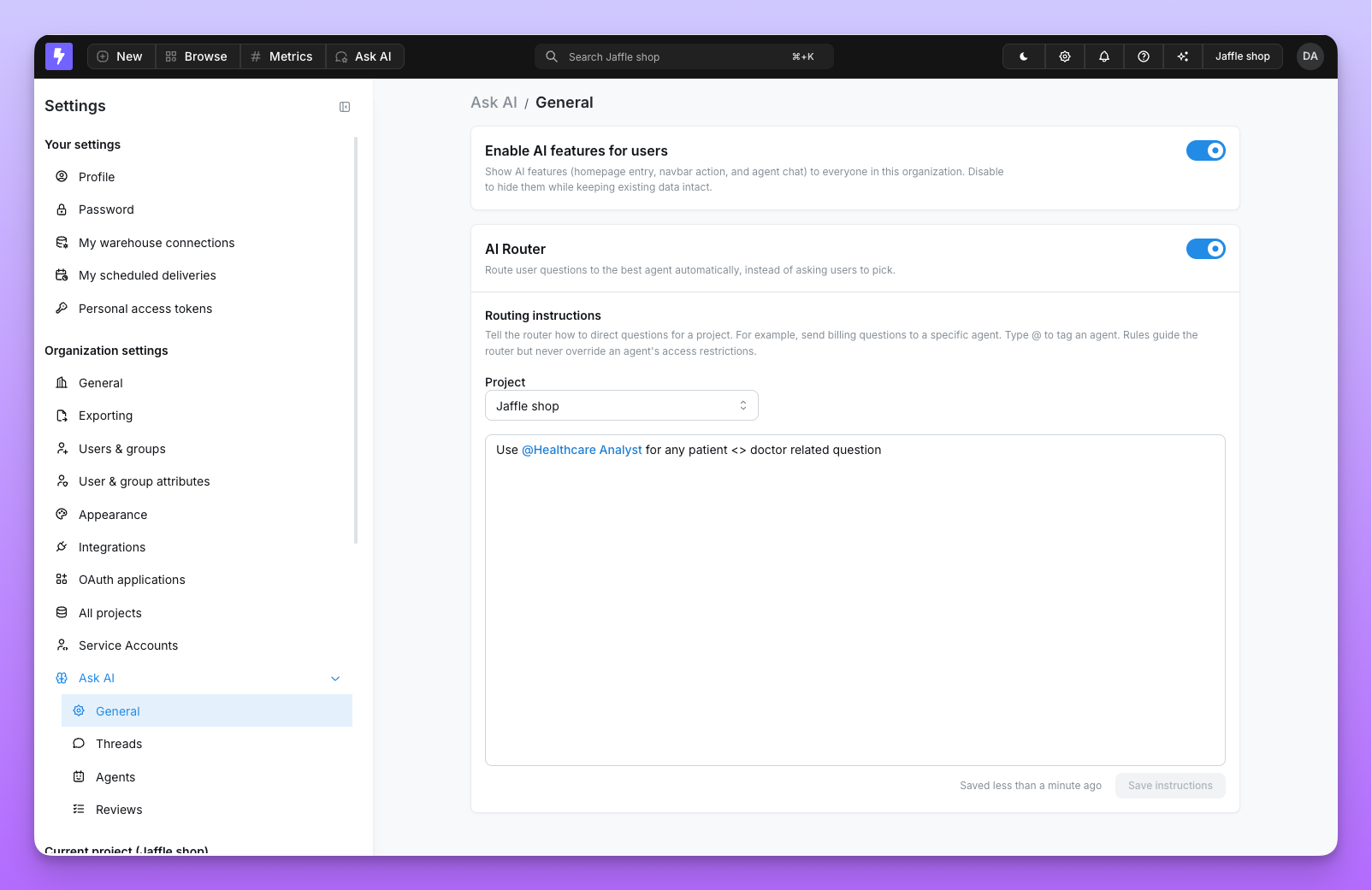
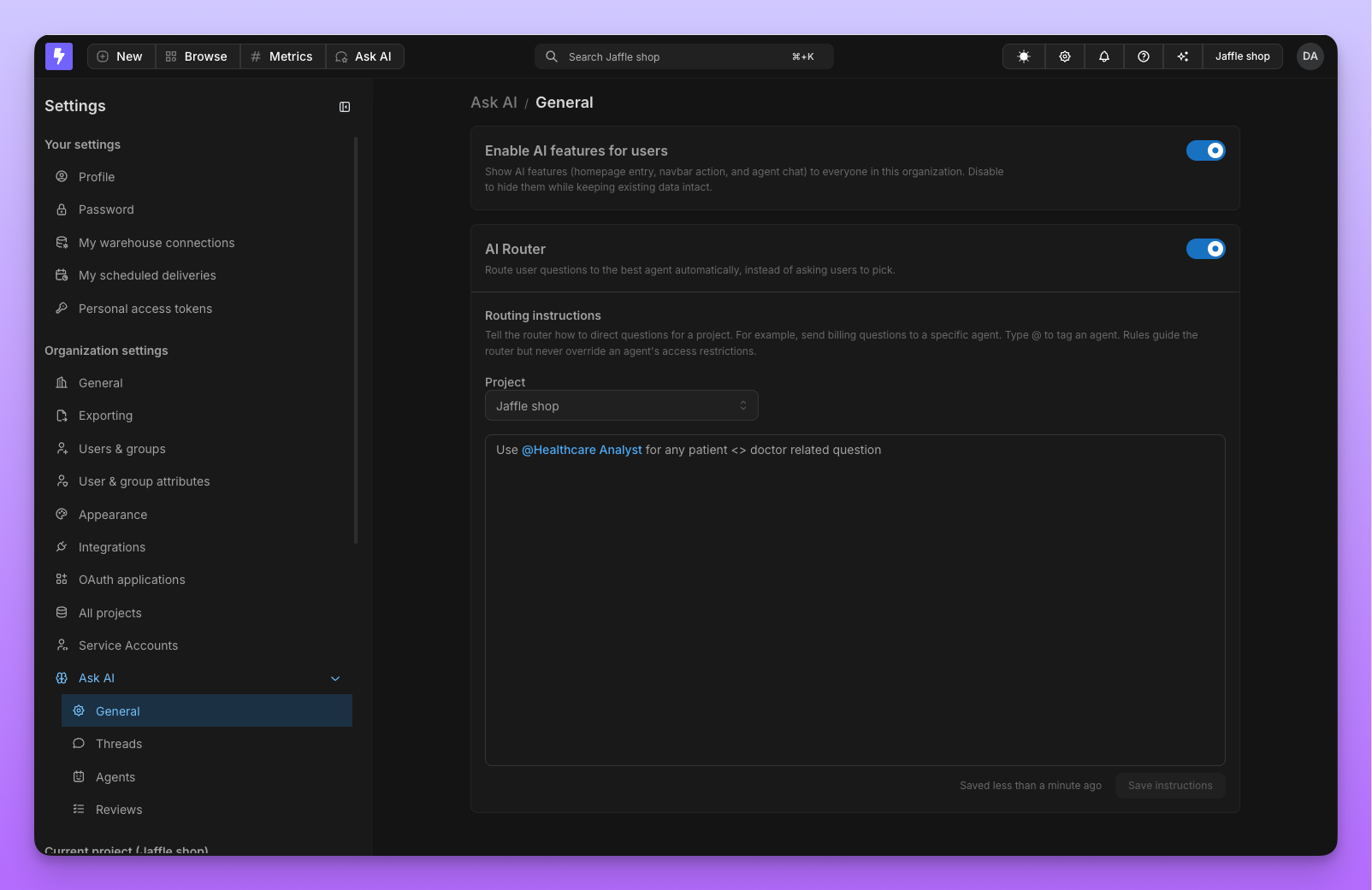
Routing instructions
By default the router decides on its own, but you can give it routing instructions to steer specific kinds of questions toward specific agents — for example, "send billing questions to the Finance agent." Instructions are written per project and authored by admins.
With the router enabled, scroll down on the Ask AI → General page to the Routing instructions card.
Choose the project these instructions apply to. Routing instructions are scoped per project.
Describe how questions should be directed. Type @ to tag a specific agent, then click Save instructions.
A few things to keep in mind:
- Rules are advisory. They guide the router's choice but never override an agent's access restrictions. A rule can only point to agents the user can already access.
- Tagged agents must belong to the project. You can only tag agents that exist in the selected project.
- Fewer than two agents? You can still write and save instructions, but the router won't run in that project until at least two accessible agents exist. Qyra shows a note when this is the case.
Router and Slack
The same routing logic powers multi-agent Slack channels. In a multi-agent channel you mention the single Qyra Slack app and Qyra automatically picks the best agent for your question — no need to know which agent to address. See Slack channels: single-agent vs. multi-agent for setup.
Router and MCP
The router is also exposed to AI assistants over Qyra MCP through the route_agent tool. After setting an active project, the assistant can pass the user's prompt to route_agent and Qyra automatically activates the best-fit agent for the rest of the session — no manual list_agents / set_agent step required.
Unlike the web experience, MCP routes directly to the best-fit agent even when only one agent is accessible (there's no picker in an MCP client). Routing instructions and access controls behave the same way as in the Qyra app.